
Moving photos and videos off your phone in 2026 should be easy, yet it’s still one of the most common ways people lose time and sometimes lose files. You plug in a cable, the computer sees the phone for a moment, then it disconnects. Transfers crawl at weird speeds. Videos won’t open on the PC after copying. Or everything looks fine until you discover missing dates and half-copied folders. Most of these problems aren’t “bad luck.” They come from three predictable issues: the cable isn’t actually built for fast data, the phone is in the wrong USB mode, or the transfer workflow is fragile and gets interrupted by sleep, power saving, or unstable connectors. The lifehack is treating the phone-to-computer path like a chain: phone port, cable, adapter (if any), computer port, and software mode. If you make each link reliable and you copy in a way that verifies results, you can move big media libraries quickly without corrupt files or random disconnects. The goal is not just speed; it’s confidence that what you moved is complete and playable.
Fast cables that are actually fast: data vs charge-only, USB-C realities, and how to avoid the disconnect trap
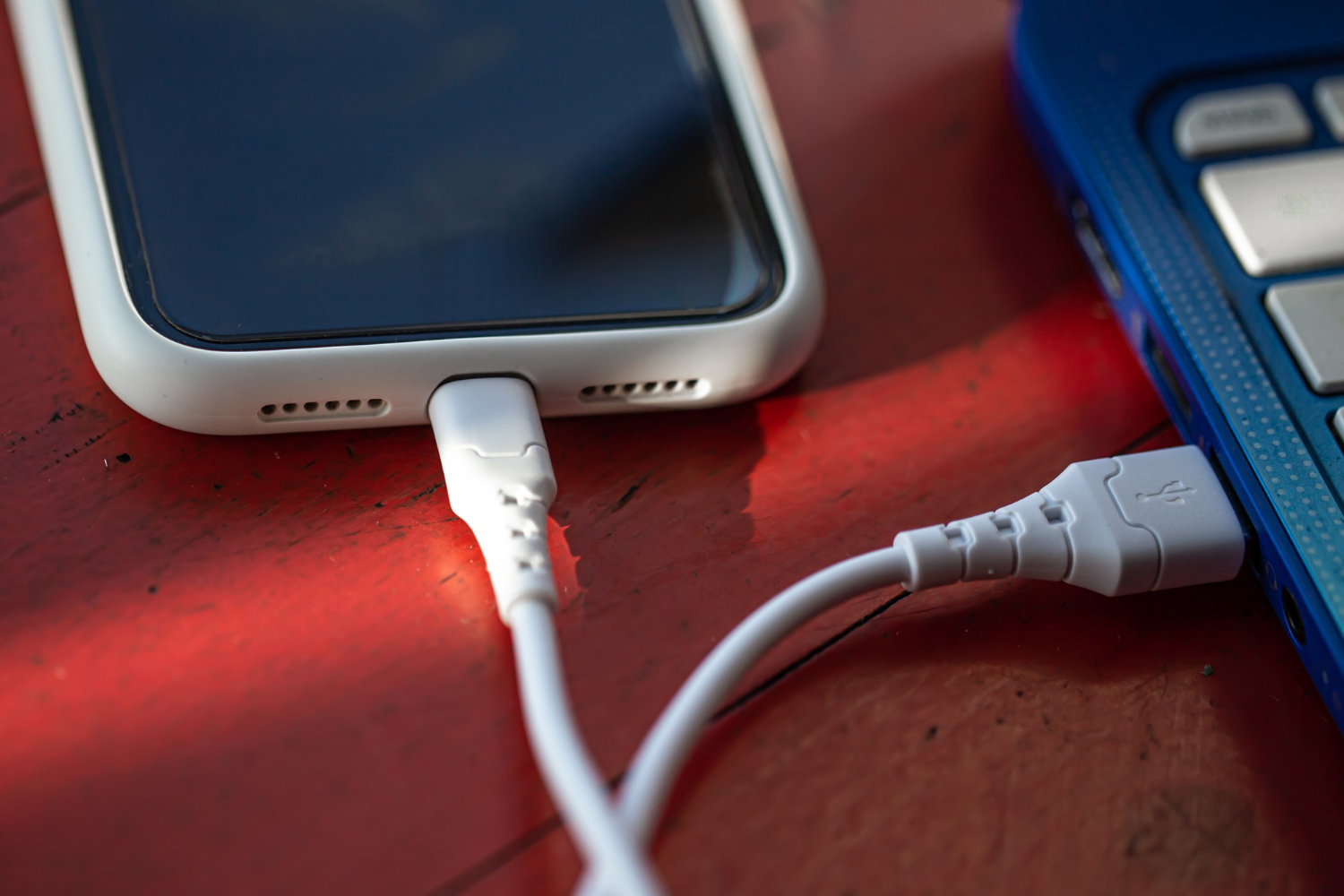
The single biggest surprise is that many cables charge perfectly but transfer data poorly or not at all. That’s because “USB-C” describes the connector shape, not the data capability. The lifehack is using a cable that is explicitly designed for data at high speed, not a free charging cable that came with something else. Charge-only cables often lack full data wiring, and some cheap cables have weak shielding or poor connectors that cause intermittent contact. Intermittent contact is exactly what creates the “disconnect mid-copy” problem. Another cable trap is length and stiffness. Very long cables can reduce signal quality at higher speeds, and ultra-thin cables can be mechanically fragile. Pick a reasonable length, and choose a cable that fits snugly in the phone and the computer without wobble. Also pay attention to the port you use on the computer. Some front-panel ports on desktops are less stable, and some hubs or docking stations introduce their own limits. If you experience disconnects, the lifehack is simplifying: plug directly into a main port on the computer and avoid adapters until the transfer is stable. If your phone uses USB-C and your computer has USB-A, a good USB-C-to-A data cable is fine, but avoid stacking dongles because every adapter is another failure point. A solid cable and a stable port eliminate most “random” transfer failures before you even touch settings.
Correct modes that prevent errors: choose the right USB option and stop the phone from “helping” too much
Even with a perfect cable, transfers can fail if the phone is in the wrong USB mode. Many phones default to “charging only,” which means the computer won’t see storage properly until you authorize it. The lifehack is selecting the correct USB connection mode when you plug in—typically a file transfer or photo transfer option—then confirming the phone is unlocked and trusted to the computer if prompted. If you ignore the prompt or the phone locks mid-transfer, the connection can drop. Another issue is background behavior. Some phones aggressively save power and reduce USB activity when the screen goes off, which can break long transfers. The lifehack is keeping the phone awake during big copies: set screen timeout longer temporarily, keep it plugged into power, and avoid heavy multitasking on the phone while transferring. Also be cautious about “smart” photo tools that try to optimize or convert media during export. The safest approach when you care about reliability is copying originals in a direct file transfer mode rather than relying on a tool that might re-encode or reorder things. If you need to preserve metadata like dates and locations, direct copy of original files is usually the most predictable. Finally, if you’re moving very large batches, consider transferring in chunks rather than one massive drag-and-drop of thousands of items. Chunking reduces the chance that one interruption forces you to restart everything and makes verification easier.
Error-free workflow that you can trust: test folder transfers, verify results, and build a repeatable routine

The final lifehack is verification and repeatability. Before you attempt a huge transfer, run a realistic test using a 1–2 GB folder, exactly as your SEO plan suggests. This does two things: it reveals whether your cable and port are stable under sustained load, and it shows you the real transfer speed you can expect. If the test folder fails or disconnects, fix the chain before you attempt a full library. Once the test succeeds, copy in structured batches—by date range, by album, or by folder—so you always know what’s done and what’s not. After each batch, verify quickly: check file counts, confirm that a few random photos open instantly, and play a couple of videos fully rather than just seeing a thumbnail. Video corruption often shows up as playback failures or missing audio, so a quick playback check is worth it. Also confirm that metadata is intact by sorting by date on the destination device and checking a few items you know the timestamp for. If dates look wrong, you may be importing in a way that strips metadata or you may be copying derivatives instead of originals. Once you find the workflow that works—good cable, correct mode, stable port, chunked copying, quick verification—write it down mentally and repeat it every time. Moving media off your phone in 2026 should be a routine, not an adventure. When the chain is solid and your process includes a small test and verification, transfers become fast, predictable, and error-free.